Find the point where the invitation gets lost
Why aren't guests uploading to the wedding QR code? Start with the guest path
When wedding guests are not using the photo QR code, the cause is often practical: they missed the instruction, could not scan the sign, were unsure what to send, or could not get online. Work through the guest path before changing the plan.
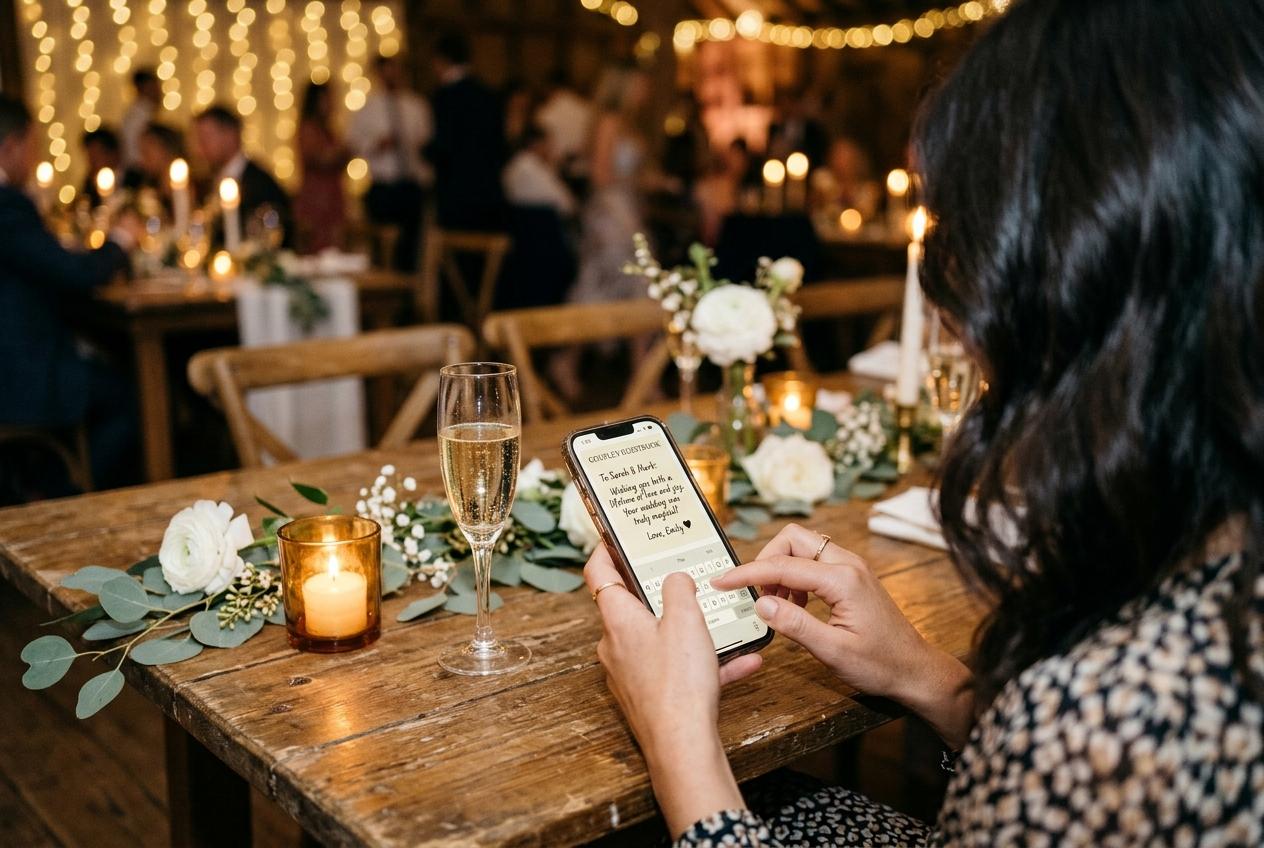
A quiet upload page can make a couple think that guests did not take photographs, but those are separate things. Guests may have captured the ceremony and never found the sign. They may have seen the code, but not understood what it opened. The camera may have been scanning a reflection from a frame, the venue connection may have failed, or the guest may have planned to send files after returning home and forgotten. Before adding more signs or blaming guests, follow the path from the invitation to a completed upload. At each step, ask what the guest sees, what they understand and what they can do in that moment. That turns a vague problem into a small list of fixes.
Confirm the code opens the correct event
Start with the simplest failure: the QR code may not point where the host expects. Scan the exact printed version, not only the digital preview. Use a phone that is not signed in to the host account and check the full address that opens. Confirm the event name, greeting and upload controls are visible. If the host printed an older code before changing the event, the paper can send guests to a different page or a no-longer-used link. Compare the address on the sign with the current event page and reprint any card that points to the wrong place. A clear short link printed beneath the code gives guests another way to open the page if the camera scan fails.
Check that the code is not too small or distorted. A decorative background, glossy reflection, folded card or low-contrast print can make a phone hesitate. Place the sign upright at a comfortable height, avoid glare from windows and lamps, and give the camera room to focus. Do not put writing across the code or crop its clear border. If the venue uses warm evening light, test a print under similar conditions. Guests should not have to pick up the sign, tilt it into the light or ask a server to read it. A sign that scans on the host's computer screen may still be difficult from across a table.
Make the invitation visible at the moment guests can act
A code hidden on the back of a programme is easy to miss. Put the sign where guests pause naturally: near the welcome table, guestbook, seating plan or bar queue. Ask the venue which surfaces are allowed and whether staff will move the sign during service. Keep it in the guest's line of sight instead of behind a centerpiece or inside a crowded display. A small number of readable signs in useful places can work better than many tiny cards that compete with menus and table decorations. The goal is to make the address easy to find without turning the room into an advertisement for the upload page.
Timing also matters. A guest who sees the sign after the first dance may have already taken the ceremony photographs they could have shared. Include the link on a welcome sign or programme, then mention it once during the welcome or before the reception begins. If the couple prefers not to interrupt the celebration with an announcement, ask the officiant, planner or master of ceremonies to add a short sentence at a natural transition. Share the link directly with people who are not in the room. A guest who leaves early or attends only part of the event should not have to discover the code after the moments they wanted to photograph have passed.
Tell guests what to send and why
A sign that says only 'scan me' leaves the purpose uncertain. Guests may wonder whether the code opens the seating chart, the menu or a social page. Add a short instruction that names the action and the files: 'Share the pictures you took today' or 'Send a clip from the reception'. If the couple wants specific moments, name one or two. Some guests take plenty of photographs but are reluctant to upload without an invitation; a direct sentence from the couple makes the request feel intentional. Others may not want to share, and they should not be pressured. The invitation works best when it explains the choice and gives a simple next step.
Avoid instructions that require a speech to understand. Use large, readable type and keep the words beside the code concise. If guests should upload later because the reception connection is weak, say that the link will still be available after the event. If the page is upload-only, describe it as a place to send files rather than a gallery to browse. If a slideshow is planned, tell guests that accepted photos may appear on the room screen. Clarity prevents a mismatch between what guests expect and what the host configured. It also gives a relative or attendant an easy way to help someone who scans the sign and asks what happens next.
Test the guest flow without coaching
Hosts often know exactly what the page is because they created it. Guests do not have that context. Give the sign to a friend who has not seen the setup and ask them to use it without explaining what to do. Notice whether they look for an app, expect a password, hesitate at the name field or cannot find the file picker. Ask them to upload one photograph and tell you when they think it is finished. A successful test is not just a page opening; it is a person understanding the next action and seeing that the file was received. If they ask a question, improve the sign or guest page instructions before the event.
The rehearsal sequence
Use a second phone
Open the link as a guest rather than relying on the browser session already signed into the host dashboard.
Try a photograph and a video
Check that the file picker is understandable and confirm which file types and allowances your selected package supports.
Read the confirmation
Make sure a guest can tell that the upload completed. Remove test media if the host controls allow it.
Repeat from the printed sign
Test the final card at the size and location where it will sit. Check focus, contrast, glare and scanning distance.
Check whether the venue connection is the obstacle
A scan can open a page from a cached preview, but sending a photograph to an online collection needs an active internet connection. Ask the venue about Wi-Fi coverage in the ceremony room, reception space and outdoor areas. If possible, test at the location rather than relying on a signal reading at the entrance. Thick walls, a garden venue or a crowded room may create weak spots. Some guests may not have mobile data available or may have disabled it while travelling. The QR code cannot make an upload work offline. If the connection is unreliable, share the link for later and tell guests they can submit when they are back on a dependable connection.
Avoid interpreting a slow connection as a problem with the code until you have checked the network. Try the page from another area of the venue and, if appropriate, from mobile data. For large video files, the guest may need more time than for a single photograph. If the venue network asks visitors to accept terms or sign in, note that extra step and decide whether your guests will know how to complete it. A backup link in the programme or a follow-up message will not repair the network at the reception, but it gives people another chance to share later. Keep the couple informed about the venue's limitations so expectations remain realistic.
Check the event plan against its upload limits
The address may work and the upload may still fail because the event has reached a package allowance. Candid Preview allows twenty photos, ten contributing guests, 500 MB and no video uploads. Gather includes 200 photos and 30 videos; Celebrate includes 750 photos and 100 videos; Keepsake includes 2,000 photos and 300 videos. Storage and retention vary by package. Check the host dashboard and pricing page before the event, especially if the same code has been tested repeatedly or a small guest group has already filled much of the allowance. A sign should not promise every guest unlimited uploads unless the selected plan actually provides them.
If the couple expects a large number of files, estimate the collection before choosing a package. Count likely contributors, not only guests, and consider whether people will upload a single favourite or a group of images. Video clips can use considerably more storage than photographs, so include them in the estimate. Decide whether the host wants a live display, a written guestbook or recorded video messages, since those needs affect the package decision too. Candid offers extra upload allowances and longer retention as paid add-ons. Compare the current limits and add-on prices before sharing the link broadly; a last-minute surprise is more stressful than choosing an appropriate allowance in advance.
Consider guest comfort and the page settings
Some guests do not want to share personal photographs in a room where others can browse them. Others may think the host expects a public social post rather than a private event contribution. Tell guests what the collection is for and who can view it. Candid event pages are kept out of search indexes and are not listed in a public directory. The host can turn off the guest-facing gallery while accepting uploads. If approval is on, submissions wait for the host to accept them before display. Those choices should be part of the event invitation so guests do not have to infer the audience from the printed code.
Also make the request feel optional. A QR code should invite, not command. Guests may be dancing, caring for children, helping family or simply enjoying the wedding without taking photographs. A low upload count does not mean the collection is broken, and it does not mean anyone needs to be called out publicly. If the couple wants more contributions, ask a trusted attendant to remind guests kindly at a natural pause, and share the link afterwards. The best intervention is usually a clearer invitation and an easier path, not a louder announcement or repeated interruption.
Give guests a second chance after the reception
Many guests take pictures when the action is happening and only think about sharing them later. Leave the event link available in a message to the wedding party or family group, and include a simple thank-you with the request. Ask for the moment the couple has not yet seen rather than sending a vague reminder. A guest may be able to upload from home where the connection is better and there is time to select the right files. If the collection will close on a date, communicate the deadline clearly. A second invitation lets someone contribute at their own pace without turning the reception into a technology support session.
The host should also decide how the new files will be preserved. Candid package retention ranges from seven days on Preview to six months on Keepsake. The host can download individual items or the collection archive; download quality depends on the package. Put the closing date in a calendar and assign a person to save the archive. Guests who are asked to send photographs should not assume the files stay available forever. A follow-up message can thank them, invite any final uploads and remind the host to download the collection before the online period ends.
A practical recovery plan for the wedding day
Match the symptom with the next check
- The code does not scan
- Check the printed size, contrast, reflection and clear border. Reprint a clean copy and provide the short link as a backup.
- The page opens but guests stop
- Ask someone unfamiliar with the setup to test it. Simplify the instruction and make the next action clear.
- Uploads stall in one area
- Check Wi-Fi and mobile data in that part of the venue. Share the link for later if the connection is poor.
- Guests do not know what to send
- Name a few moments and clarify whether photos, videos or both are welcome. Keep the invitation optional.
- A file is not accepted
- Check the package's remaining allowance, storage and media rules before asking the guest to try again.
- Contributions are still low afterwards
- Send a thank-you and the link while the event is fresh. Ask for one specific missing moment and set a clear date.
Fix the path before judging the response
When guests are not uploading, check the address, print, placement, wording, connection, package allowance and guest-facing settings in that order. Each check is simple and can be performed before the wedding. A good QR flow opens the right page, explains what to do and confirms the file reached the collection. A good invitation tells guests why the couple wants those photographs and makes sharing optional. A realistic package gives enough room for the files the couple expects. Together, those details improve the chance that guests can contribute without help, while keeping the couple's expectations grounded in what the service actually does.
If a few people still do not use the code, that may simply be how they prefer to celebrate. Do not treat participation as a test of affection or a measure of whether the wedding succeeded. The purpose of the collection is to make it easy for willing guests to share, not to require every person to interact with a screen. Keep the sign visible, explain the action once, provide a link afterwards and let people return to the day. The photographs that arrive are a welcome record of the room, and the files the professional photographer delivers serve a separate role.
Troubleshooting wedding photo QR codes
Why are guests not using our wedding photo QR code?
They may have missed the sign, not understood what it opens, had trouble scanning it or lacked a reliable internet connection. Test the full guest path and simplify the invitation before adding more signs.
Can guests upload later if the wedding venue has weak Wi-Fi?
Yes. Share the event link so guests can return when they have a reliable connection. Sending files to an online collection still requires internet access.
How can I make more wedding guests scan the code?
Place a readable sign where guests pause, say what to share and mention the code once at a natural moment. Keep the link available for a follow-up after the wedding.
Do guests need an app to use a Candid Photos code?
No. Candid opens the event page in a browser from the QR code or short link. Guests provide a name and choose files to send.
Test the guest path before printing
Scan your event code from a second phone, send a test file and check the page from the guest's point of view.
Guides and comparisons
Put one link on the tables and let everyone contribute.
Create a collection, print the table stands, and the photographs your guests took are waiting for you the morning after. Guests never install anything and never make an account.