QR codes for events
Event photo sharing QR code: the simplest way to collect guest pictures
A QR code displayed at your event gives every guest a direct route to your photo upload page. No link to remember, no app to download, no instructions needed. Guests scan and contribute in the natural pauses during the event.
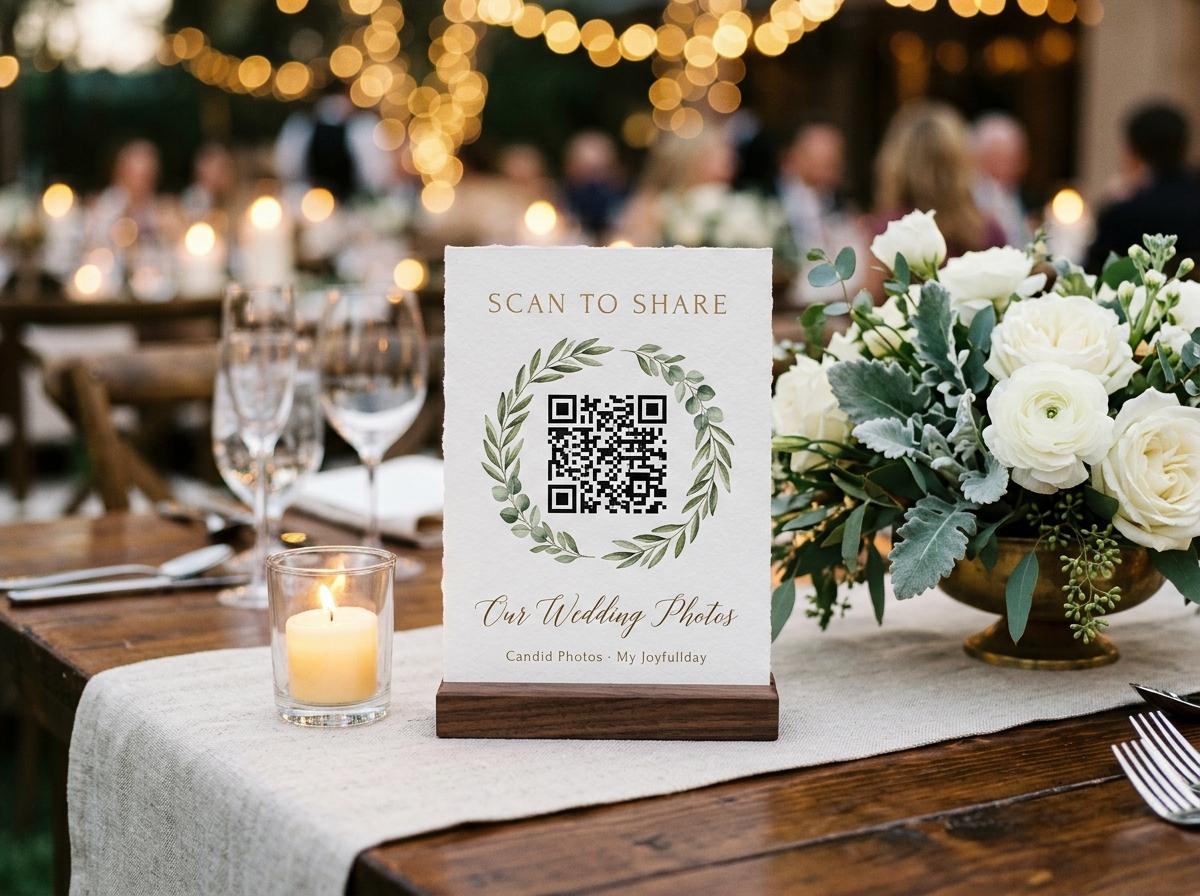
A QR code is not a novelty. It is a navigation shortcut — a printed address that any phone camera can read without asking the user to type anything or remember anything. For event photo sharing, that shortcut solves a specific problem: guests have photographs they would share if sharing were frictionless, but most methods for collecting event photos are not frictionless. A group chat address misread. An app that requires a download. A message that arrives in the right thread on the wrong day.
A code on a table stand sits in front of a guest for two hours. It asks nothing of them until they choose to act. When they do act, the camera on their phone opens an upload page in under five seconds. That is the entire friction of contributing to the collection.
How a QR code for event photo sharing works
Create your event gallery
Open Candid Photos, name your event, and choose a plan. The event page generates a unique upload link and a matching QR code image immediately.
Download and print the QR code
Download the QR code from your event page. The image is designed to print clearly at a range of sizes. Print one for a table stand, several for a larger venue, or one large version for a backdrop.
Display it at the event
Place the printed code where guests spend time: on tables, at the bar, near the gift table, by the entrance. The goal is for it to be in a guest's sightline at a natural pause point during the event.
Guests scan and upload
On the day, guests point their phone camera at the code. It opens your upload page in their browser. They select photos or videos from their gallery and submit. No app, no account, no password.
Browse and download the collection
Photos arrive in your event gallery in real time. After the event, download the full collection in original quality.
Where to place a QR code at your event
The effectiveness of a QR code at an event is almost entirely a function of placement. A code that is visible and accessible throughout the event produces more contributions than one that appears only at the entrance. The goal is to put it at the moments and locations where guests naturally reach for their phones.
On every table
For seated events, one code per table ensures every guest has access without needing to move across the room. This placement also means the code is visible during the quieter moments between courses or speeches, when guests are most likely to look at their phone.
At the bar or drink station
Guests spend time at the bar waiting for drinks. A code on a small stand here catches people during a natural pause, when they have one hand free and their attention is momentarily unoccupied.
Near the gift or display table
Guests naturally pause near displays — the gift table, the photo wall, the welcome display. A code placed here is in view during those pauses.
On a large backdrop or display
For events with a photo opportunity wall or branded backdrop, a large-format QR code printed or displayed at one side creates a natural prompt: take a photo here, then scan and upload it.
What guests do when they scan
Scanning a QR code with a phone camera opens a URL — a web page. No app is involved in this step. The camera recognises the pattern in the code and offers to open the link; the guest taps it and a web page opens in their browser. The upload page on Candid Photos is designed to load quickly on a mobile browser and to make the process of selecting and submitting photos as direct as possible.
- Step one: scan the code
- Open the phone camera and point it at the QR code. Modern iPhones and Android phones recognise QR codes without any additional app.
- Step two: type a name
- The upload page asks for an optional name. This is how the event owner knows who contributed each photo. No email address, password, or account is required.
- Step three: select photos or videos
- Guests choose from their camera roll. Multiple items can be selected in one upload.
- Step four: submit
- One tap submits the selection. The photos arrive in the event gallery immediately.
QR codes and internet connection: what to know
The QR code itself does not require an internet connection to scan — the code is just a printed pattern that encodes a URL. What does require a connection is loading the upload page and transmitting the photos. At most event venues, guests use their phone's mobile data connection. If the venue has wifi, sharing the wifi password alongside the QR code — on the same stand or card — means guests who prefer wifi can use it.
Common questions about event photo sharing QR codes
Does the guest need an app to scan the QR code?
No. The camera on any modern iPhone or Android phone can scan QR codes directly. No additional app is needed.
What happens if a guest cannot scan the code?
The same upload page is accessible through the shareable link, which you can also include in an invitation or event message. Guests who prefer a typed address can use that instead.
Can the same QR code be printed multiple times for a larger venue?
Yes. The QR code image can be printed as many times as needed. All scans resolve to the same event gallery.
Does the QR code expire?
The code remains active while the event is open to uploads. Once the event closes, the code will no longer open the upload page.
Can I reuse a QR code from a previous event?
No. Each event has its own unique QR code. Using a code from a previous event would direct guests to the wrong collection.
Create your event photo sharing QR code
Set up your event, download the code, and print it before the day. Guests scan and contribute without being asked.
QR code photo sharing
Put one link on the tables and let everyone contribute.
Create a collection, print the table stands, and the photographs your guests took are waiting for you the morning after. Guests never install anything and never make an account.