A printed code still needs a connection behind it
Do wedding QR codes work without Wi-Fi? Plan the upload connection
A wedding QR code can be scanned without Wi-Fi, but guests need an internet connection to open an online upload page and send files. Test the venue network and give guests a way to upload later if needed.
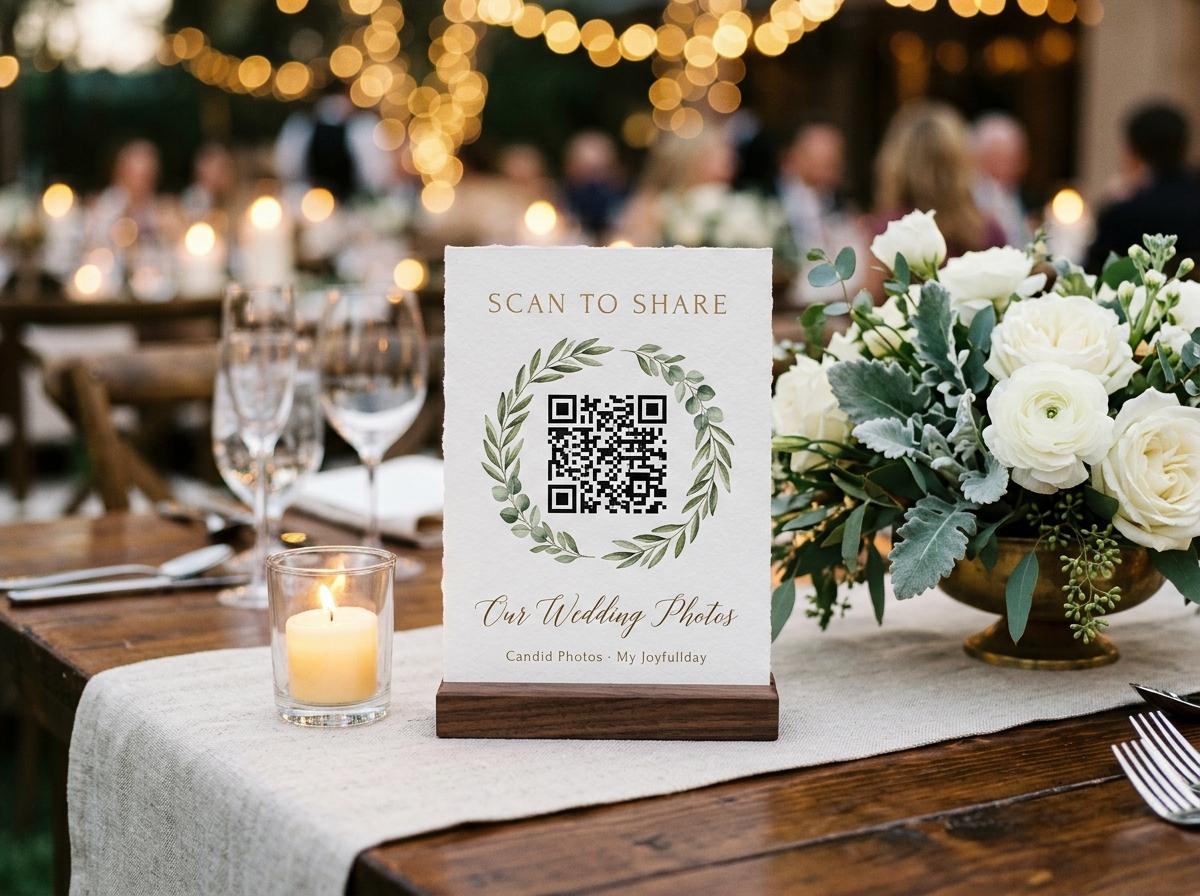
A QR code is printed information that a phone camera can read. It is not an offline storage device and it does not carry the wedding photographs inside the paper. If the code points to an online collection, a phone needs an internet connection to open the event page and send files. That connection can come from venue Wi-Fi or mobile data; the code itself cannot create a signal. This distinction is useful when a couple is planning a wedding at a rural venue, garden, basement or historic building. The sign may scan perfectly while the upload still fails because the phone cannot reach the service. Plan for the network separately from the printed code.
What happens when a guest scans the printed code
The camera reads the address encoded in the pattern and asks the phone to open it. For a Candid Photos event, that address leads to a page in the guest's browser. The guest provides a name and chooses photographs or videos to submit. Loading that page and sending files both require internet access. If the camera cannot open the address, a printed short link gives the guest another way to type it later, but typing does not remove the connection requirement. A code can be scanned while a phone is offline; the browser page cannot fully load from a service it cannot reach.
Some phones remember a page they have opened before, which can make it look as though the site opened without a connection. A guest may see a cached screen or a preview, but uploading a new file still requires a working network path. Do not plan the collection around a cached page or assume an upload queue will send itself later unless the service explicitly provides an offline feature. Candid is a browser-based online collection; the host should tell guests they can return to the link when connectivity is available. That is a realistic fallback for a venue where coverage varies across the property.
Check the venue network before printing signs
Ask the venue which rooms and outdoor areas have Wi-Fi, whether guests can use it and whether it requires a portal or password. Then test the connection where the QR code will sit. A router near the entrance does not guarantee good coverage in a stone-walled ceremony room or a garden pavilion. If possible, send a test photograph from a guest phone while standing near the welcome table and again in the reception area. Check how long the page takes to open and whether the upload completes. A single test from the planner's office cannot predict what a crowded room will feel like to a guest.
Ask whether the venue's network is shared with staff systems or public guests. A public login page may require visitors to accept terms before browsing. A phone can show Wi-Fi bars and still have no internet until that step is completed. Make note of the instructions guests must follow and decide whether they are simple enough for a wedding sign. If access requires a code, the couple can include it in a programme or ask venue staff to make it visible. If the process is cumbersome, mobile data may be easier for some guests, but it should not be the only plan for a group with varied coverage and data allowances.
Understand why mobile data is not a complete backup
A guest's mobile connection may be strong in one part of the venue and weak in another. People travelling from abroad may have roaming turned off. Others may have limited data or a plan that slows after a threshold. Large videos take longer to send than a single photograph and can be more sensitive to a weak connection. Do not assume every guest can upload through mobile data simply because their phone displays a network symbol. If the couple wants contributions from an event with uncertain Wi-Fi, provide the link for after the reception and make clear that files can be sent later.
The host can also encourage a small number of contributors to test the service in advance. That confirms that their devices can select a file and reach the event page, but it does not prove that the venue network will support every guest at once. If connectivity is a major concern, ask the venue about its access points, coverage and any restrictions before deciding how prominently to promote live uploads. A collection can remain useful even if guests contribute later. The important part is setting expectations so nobody assumes that a failed connection means their photograph has been lost or that the host's QR code is broken.
Choose the best place for the sign and fallback link
Place the QR code where guests are likely to have enough time and signal to use it. A reception entrance, guestbook table or quiet area may work better than a busy dance floor. Test several locations and choose the one with a reliable connection and room to stop briefly. Include the short link beneath the code so a guest can type it when scanning is difficult. Send the same link in a follow-up message for guests who do not upload during the event. The printed code and typed address lead to the same page; the network determines whether the page can be reached at that time.
If the venue has a known weak area, do not place the sign there simply because there is a spare table. Ask staff whether the sign can stay upright and visible in a better-covered spot. Avoid placing it beside bright glass or a reflective centerpiece that makes the code difficult to scan. Test the final print under the room lighting and at the distance guests will use. A reliable sign solves two small problems at once: it makes the address findable and reduces scanning mistakes. It still depends on the connection, so keep an alternative way to share the link after the event.
Let guests upload later without losing the moment
The link does not have to be used only while the guest is inside the venue. A guest can save the address and submit after returning home, when Wi-Fi is available. Tell people that the collection will remain open until a particular date and that they can contribute later. This helps older phones, guests with limited data and people who were busy taking part in the wedding. It also reduces the pressure to scan a sign in the middle of an important moment. If the host wants files before a slideshow, explain that the live display depends on when submissions arrive and whether the host is reviewing them.
A follow-up message can thank guests, repeat the link and ask for one or two specific moments the couple has not yet seen. Keep the message short and non-urgent. If the event collection closes on a date, include it so contributors know how much time remains. Candid packages have different online periods, from seven days on Preview through one month, three months and six months on its paid packages. Choose a window that fits the intended after-event upload period. A QR code is a convenient starting point, while the saved link gives the guest another chance when the signal is better.
Do not confuse scanning with uploading
If a guest says 'the QR code worked', ask whether the page opened or whether the file actually arrived. Those are separate steps. The camera might read the code and show a browser screen, but the page may not finish loading. A guest may select a photograph and see the upload stall. The host should check the event dashboard for a received file rather than relying on a scan count or a screenshot of the page. During a rehearsal, complete one test upload from start to finish and confirm it appears where expected. This distinguishes a working link from a working internet connection.
A failed upload may be caused by network coverage, package limits, file size or an incorrect event link. Check the simplest possibilities in sequence. Make sure the phone can open another website, test closer to the access point, try a smaller photograph, confirm the event has remaining allowance and scan the current code. If video is not included in the chosen package, no amount of Wi-Fi will make a video upload available. Tell guests what the selected plan accepts. A host who understands the difference between connectivity and package limits can help a contributor without asking them to repeat the same failed step.
Plan the collection size along with the connection
A strong internet connection does not remove the event's file and storage limits. Candid Preview allows twenty photos, ten contributing guests, 500 MB and no video uploads. Gather includes 200 photos and 30 videos, Celebrate includes 750 photos and 100 videos, and Keepsake includes 2,000 photos and 300 videos. Storage and online retention differ across those packages. If a couple expects guests to send video from the reception, choose a package that supports it and account for the time those clips may take to upload. A plan with the right limit and an unreliable venue connection still needs an after-event link as a fallback.
Talk to the venue and choose the package before printing the final sign. The sign can name the collection and tell guests whether photographs, videos or both are welcome. It should not promise unlimited uploads or say 'works offline'. If the host has approval switched on, files may wait for review before they appear in the gallery or slideshow; tell the person managing the display. Think through the expected arrival of files and whether a room screen will show only accepted images. Reliable access, clear limits and honest expectations work together. The couple can then enjoy the reception without treating the Wi-Fi router as another member of the wedding party.
A connection checklist for the couple and venue
Test these before the event
- Ask the venue whether guests can use Wi-Fi and how they join it.
- Scan the final printed code from a guest phone in the actual room.
- Complete a test upload on both venue Wi-Fi and mobile data if available.
- Check whether a login portal or access code adds steps for guests.
- Place the sign in a location with space to pause and enough signal.
- Print the short link beneath the code as a typing fallback.
- Share the link after the wedding for guests who could not upload at the venue.
If the connection is poor, keep the event link available after the reception and set a clear date for final uploads.
What to do if the venue has no reliable internet
If neither Wi-Fi nor mobile data is reliable, explain the limitation before the wedding and plan for uploads afterwards. Guests can take photographs as usual and use the short link once they reach a connection. The organiser can send a follow-up message to attendees who want to contribute. If the couple needs images to appear live on a screen, an online browser collection cannot guarantee that outcome without a working connection. Choose another display plan or accept that the slideshow will update when files arrive. The honest choice is better than promising live uploads that the venue network cannot support.
An offline transfer method such as collecting camera cards or connecting phones directly requires different equipment and a person who can manage it. It can interrupt the event and creates a separate process for keeping track of whose files have been copied. Candid Photos is designed for browser uploads to an online event page, so use it when guests can connect at the venue or later. If the wedding is in a true dead zone and every file must be available immediately, talk with the venue and organiser about a dedicated connection or a different collection workflow before selecting a product.
Answer the Wi-Fi question before printing the QR code
Wedding QR codes can be scanned without Wi-Fi, but an online photo page and an upload need internet access. Check the venue's guest network, test the actual room and include a short link for guests who need another way to open the page. If the connection is unreliable, let guests contribute later and set a clear closing date. Those steps make the code useful without pretending it can work offline. Candid's guest page opens in a browser from a QR code or link; guests do not need to install an app or create an account, but their phone must be connected when it sends the files.
The couple can make the plan simple: confirm coverage with the venue, test the sign, tell guests what to do and save the link for after the reception. Assign a person to check that the archive is downloaded before the online period ends. If the network changes on the day, the host can share the same link through a message later. A QR code is one reliable way to find the collection when the conditions support it. Understanding the connection requirement in advance prevents disappointment and gives guests a graceful alternative when the room's Wi-Fi cannot keep up.
Wi-Fi and wedding photo QR codes
Can a wedding QR code be scanned without Wi-Fi?
Yes, a phone camera can read a printed code offline. Opening an online event page and uploading a photo still requires an internet connection, through Wi-Fi or mobile data.
Can guests upload wedding photos later?
Yes. Share the event link and tell guests the date the collection closes. They can send files when they have a reliable Wi-Fi or mobile connection.
Does Candid Photos work without an internet connection?
Candid's guest page is an online browser page. Guests need internet access to open it and submit files, but they do not need to install an app or create an account.
How can I test the venue Wi-Fi for photo uploads?
Scan the printed code from a guest phone at the planned sign location and complete a test upload. Check any venue login step and test another area if the signal is weak.
Try the guest upload on the venue network
Scan the code in the room, send a test photo and keep the short link ready for guests who upload later.
Guides and comparisons
Put one link on the tables and let everyone contribute.
Create a collection, print the table stands, and the photographs your guests took are waiting for you the morning after. Guests never install anything and never make an account.