From paper to browser
Find out why the camera will not open your wedding code
Is your wedding QR code not scanning, or has it already scanned and left you looking at a page that will not load? Those are different faults. Start by watching what happens between the camera and the browser. That small observation tells you whether to adjust the printed sign, check the destination, or investigate the venue connection.
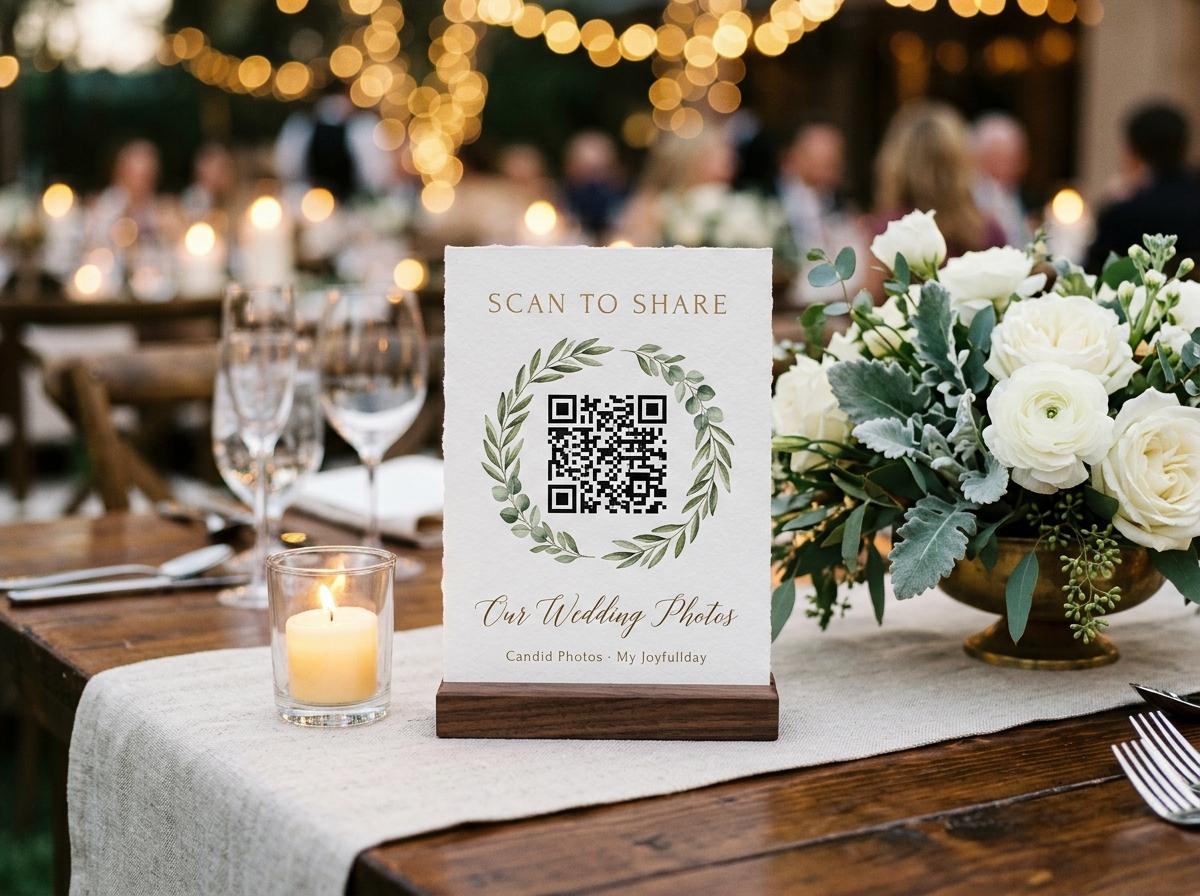
Locate the break before changing the sign
What the guest sees tells you where to start
- No link appears in the camera
- The phone has not recognised the code. Concentrate on camera mode, focus, lighting, print quality, and the empty margin around the square. The internet connection is not needed just to decode the printed pattern, so a network password will not usually fix this stage.
- A link appears, but no page opens
- Recognition has worked. Tap the link prompt if the camera requires it, then look at the browser. A loading spinner, venue sign-in screen, or network error is a connection problem to investigate rather than evidence that the printed squares are unreadable.
- A page opens, but it is wrong or unavailable
- The print is readable, but its destination may be incorrect, incomplete, or no longer usable. Compare it with the event's current guest address. Ask the host to check the event state rather than repeatedly scanning the same code and hoping it changes.
- The right collection opens, but a file fails
- You have passed the QR stage. Read the upload message and check connectivity, the selected file, and the event allowance. Do not replace a working sign because an individual video is too large or a submission is waiting for review.
Keep this diagnosis visible to whoever is helping guests. Saying 'the QR is broken' hides several different problems behind one phrase and can lead to a needless reprint. Ask the guest to describe the last successful step; do not take their phone and repeat the whole process without looking at the result.
Make one calm camera test
Use the phone's normal camera
Leave an unrelated app and open the camera in an ordinary photo mode. QR recognition varies by device and settings, so look for the phone's built-in scanning option if the camera offers no prompt. A separate event app is not required. Avoid installing an unfamiliar scanner from an advertisement just to reach the wedding page.
Frame the whole square
Hold the phone steady with all four corners and the surrounding clear border visible. Begin at a comfortable reading distance and move slowly closer or farther away until the camera focuses. Pressing the lens against the paper or using heavy digital zoom can make recognition harder, not easier.
Remove the obvious obstruction
Move the sign out of a flower's shadow, tilt it away from a reflection, or take it briefly out of a glossy holder. Wipe the camera lens gently if it is smudged. Do not rearrange candles or electrical lighting in a way that creates a safety problem for the table.
Try one comparison phone
If a second phone reads the same sign immediately, investigate the first phone's camera or scanning settings. If neither reads it, compare another copy of the sign. A single damaged table card is a different problem from a flawed master design that affects every table.
Stop after a short, useful test. A guest should not spend the drinks reception debugging camera software. Give them the readable guest address or send the same link through an agreed message route, then let the helper inspect the print away from the table. Participation should not depend on owning a particular phone.
Inspect the actual print rather than the design file
A successful scan from a designer's monitor does not prove that the finished stationery works. The exported image may have been compressed, the printer may have softened the edges, or the layout may have shrunk the code to make room for another line of text. Look closely at the copy guests are holding. Its small squares should remain distinct, its outline should not be stretched, and the background should not compete with the pattern. Decorative design is allowed around a working code, but the code itself has a job to do.
Paper faults worth correcting
- Check for cropping at the edges and restore a clear margin around every side. A border, floral motif, or line of lettering touching the code can interfere with recognition even when the central pattern looks intact.
- Look for folds, water marks, toner gaps, or reflections from lamination. Replace a damaged copy rather than asking every guest to find the one angle from which it still works.
- Keep strong contrast between the code and its background. A pale metallic design on textured paper may look attractive in daylight and become difficult for a camera under warm reception lighting.
- Test the final printed size at the intended viewing distance. A small table card and a welcome sign across a walkway are different uses; do not assume one scale suits both.
- Print from the clean source supplied for the event where possible. Repeated screenshots and copied previews can reduce useful detail. Test one corrected copy before spending time replacing the whole room's stationery.
Check that the code carries the guest destination
Once a phone recognises the pattern, compare the address it offers with the guest link the host intended to share. A code does not know which wedding is happening in the room. It faithfully opens whatever was encoded, including an old test event, a typing mistake, or a supplier's sample page. Open the current guest link directly from the host's sharing controls and confirm the event name. This comparison should happen on a private device, not by projecting the host dashboard while guests watch.
Use the contribution link
The guest browser page is the route for photographs. Guests do not need an account, an app, or a password for that event flow. A host sign-in page is therefore a clue that the wrong address may have been used, not an instruction to ask the whole wedding to register.
Keep the screen link out of print
The live slideshow has a separate token-protected address at /s/<slug>/slideshow. Its full authorised link belongs with the screen operator, not on guest table signs. Do not publish the token or copy it into an open support screenshot while checking the destination.
Replace rather than disguise a wrong destination
If the printed code points at the wrong event, provide the correct guest link clearly and replace the sign when practical. Do not tell guests to upload into a different couple's collection with a promise that somebody will sort it out later. That creates both a privacy problem and an avoidable recovery task.
Recognise the venue's captive portal
A phone can show a Wi-Fi connection while having no usable internet access. Some venues require a browser sign-in page, terms acceptance, voucher, or room detail before traffic is allowed through. This is a captive portal. It can appear after a successful QR scan and make a working event link look broken. Ask venue staff for the official guest-network instructions; do not guess credentials or advise guests to bypass the venue's access controls. The network's sign-in requirement is separate from Candid Photos, whose guest flow does not require a password.
Confirm the network name
Choose the guest network named by the venue, not a similarly named staff or equipment network. If the phone reports that sign-in is required, follow the operating system's prompt. Ask staff which page should appear if the prompt is missing.
Complete the official access step
Read the portal and enter only the information the venue legitimately requires. Once accepted, open a fresh ordinary website in the browser. A previously loaded page can remain visible from cache and is not reliable evidence that the connection now works.
Return to the event address
Reopen the guest link after the general connection test succeeds. Confirm the wedding name before selecting files. If the page still fails while other new pages load, record the exact message and ask the host to verify the link and event availability.
Compare connections without disrupting active uploads
A comparison with mobile data can help identify whether the venue network is the obstacle, but it should be deliberate. Ask the guest first: their mobile plan may be limited, roaming may cost money, and reception may be poor indoors. If files are already transferring, do not casually toggle networks on their behalf. Capture the status and let the guest decide whether to wait, retry after failure, or return later. Network switching can interrupt active work even when the second connection is ultimately better.
Evidence pointing to the venue connection
- The same correct guest address opens on mobile data but not on the venue's Wi-Fi, and other fresh web pages also struggle on that network.
- Several phones reach a sign-in portal or stop at the same access step. Venue staff should check the guest service rather than asking each person to alter camera settings.
- The link works near one access point but stalls at a distant table. Move a test phone safely before deciding that all printed codes need replacing.
Evidence pointing elsewhere
- The camera never offers any address, on either connection. Return to print and focus checks because internet access cannot repair an unreadable pattern.
- The event page reports the same unavailable state across working networks. Ask the owner to inspect the collection instead of treating it as a local Wi-Fi fault.
- Only one selected file is refused after other uploads succeed. Follow that file's message and leave the working QR route alone.
Offer a fallback that preserves the intended audience
The best fallback is usually the same guest address delivered another way. Put a readable version under the code, include it on the wedding website, or send it through the existing invited-guest message thread. Avoid posting the event link publicly as a quick fix. A collection intended for a private wedding does not become a public invitation just because one table's camera cannot read a sign. Keep the wording calm and explain that guests can contribute later if the room's connection is poor.
- At a busy table
- Say: 'The code is having trouble in this light. Here is the same guest address; you can type it or keep the link for later.' Let the guest return to the conversation. Do not ask them to surrender their phone while the helper experiments.
- When internet access is unavailable
- Ask guests to keep the photographs on their devices and revisit the collection on a working connection within its open period. Scanning can reveal an address without internet, but that does not upload the photographs. There is no promise of offline delivery or completion after the browser is closed.
- When the event is unavailable
- Have the host check the correct collection and its status before inviting more submissions. Leave a contact route with guests so a corrected link can be sent privately. Do not direct them into a temporary unrelated gallery just to keep the queue moving.
Leave a useful fault note for the next helper
A short observation is more useful than a pile of screenshots. Note the time, table or room, phone and browser if known, network used, and the last step that worked. Write whether the camera showed a link and whether the correct event opened. If a direct typed address worked, record that too. This separates a print problem from a connection problem for someone who arrives after you have left. It also avoids repeatedly asking the same guest to reproduce a failure during the wedding.
Before asking the host or support for help
- Copy the exact visible error message, without including personal photographs, guest email addresses, or the slideshow token. Crop a screenshot if unrelated private details are visible.
- Say whether another phone scanned the same physical sign. A photograph of the overall layout can help the host spot a cropped code, but do not circulate private access information unnecessarily.
- Explain whether a newly opened ordinary website worked on the same connection. This is stronger evidence than the number of Wi-Fi bars or a page that was already open.
- State what was tried once and what changed. Stop repeating unsuccessful scans when the browser has already proved that decoding worked. Escalate the actual failing stage through the help route.
Questions about scans, passwords and replacement codes
Does the QR code need Wi-Fi to be recognised?
The phone can decode the printed address without Wi-Fi. Opening the live event page and sending photographs require internet access, which can come from suitable mobile data or a working Wi-Fi connection.
Why is a password screen appearing if guests do not need passwords?
Check whether it belongs to the venue network or whether the code points to a host login rather than the guest page. The browser-based guest contribution flow itself does not require an account or password.
Should we generate a fresh code whenever a page is slow?
No. First open the current guest address directly and test the connection. Replacing a readable code with another code for the same address will not solve a captive portal, an unavailable event, or a slow upload.
Can guests still send pictures tomorrow?
They can return while the collection remains open and uploads are available. Give them the correct link and ask them to keep the original files. Do not describe a failed attempt today as a transfer that will certainly complete by itself overnight.
Fix the failing step, not the whole invitation
Keep the guest address handy, test one physical sign, and separate camera recognition from browser access. If those checks identify an event-link problem, pass the exact message to the host instead of sending guests through another round of scans.
QR code photo sharing
Put one link on the tables and let everyone contribute.
Create a collection, print the table stands, and the photographs your guests took are waiting for you the morning after. Guests never install anything and never make an account.