How to upload event photos to Google Drive
Let guests upload event photos directly to your Google Drive
The goal is straightforward: guests take photos at your event and those photos end up in your Google Drive. Getting there without requiring every guest to have a Google account is what this page explains.
The obvious approach to uploading event photos to Google Drive is to share a Drive folder with your guests. It works in theory, and it fails in practice for three consistent reasons: some guests do not have Google accounts; some who do have accounts do not want to connect them to a stranger's folder; and the upload experience through a Drive shared link is unfamiliar enough to cause confusion during a celebration.
The alternative is to use Candid Photos as the guest-facing collection layer, with your Google Drive connected on the host side. Guests upload through a simple, familiar page. The photos are automatically saved to your Drive folder. Guests never interact with Drive and never need a Google account.
How to set it up: step by step
Setting up Google Drive upload for your event
Create a Candid Photos event collection
Go to Candid Photos, sign in, and create a new collection. Add the event name, date and hosts. The collection is ready immediately.
Choose a paid plan
The Google Drive integration requires a paid plan. Gather ($19), Celebrate ($39) or Keepsake ($69) depending on the size of your event and how long you want the collection online.
Add the Google Drive integration for $15
In the dashboard, find the Google Drive integration option and connect your Google account. The $15 fee is a one-off event setup cost — not a subscription. Candid Photos creates a dedicated folder in your Drive.
Confirm your Drive has enough space
Check your available storage before the event. Estimate the size of your collection: number of guests, expected photos per person, and whether video is included. Make sure the available space exceeds your estimate.
Share the QR code and link with guests
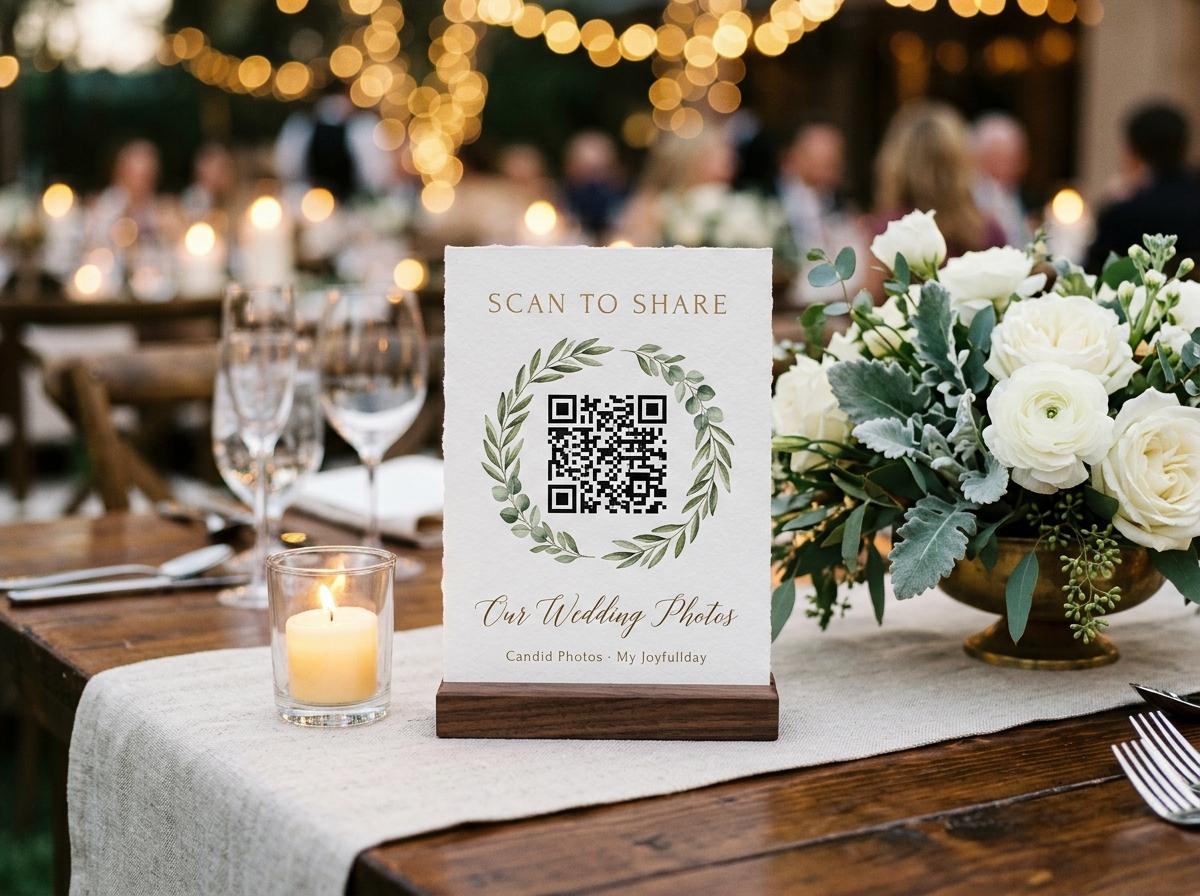
Print the table stands, include the link in invitations, and mention the upload during the welcome address. Guests scan or tap to upload — no Google account required on their side.
Watch photos arrive in your Drive
As guests upload, the photos appear both in your Candid Photos dashboard and in the connected Drive folder. You can access them from Drive during and after the event.
What happens on the guest's side
The guest experience when Drive is connected is identical to when it is not. Guests see the event name, the welcome message, and the upload button. They choose their photos, give their name, and send. Nothing about the Google Drive connection is visible or relevant to them.
No Google account required
The guest page does not ask for a Google login. The upload happens through Candid Photos. The routing to Drive is invisible to contributors.
Same QR code and link
The QR code and link that guests use are unchanged by the Drive connection. You print and place them exactly as you would for any event collection.
Attribution still works
Each contribution still carries the contributor's name in the Candid Photos dashboard. The files saved to Drive are labelled accordingly so you can trace any photo back to the guest who sent it.
What happens in your Drive
When the integration is active, Candid Photos creates a folder in your Drive named after the event. Photos and videos from each guest submission are saved into that folder as the submissions arrive. The files in Drive are the same originals that appear in the Candid Photos gallery.
- Folder name
- Named after the event when the integration is set up. You can rename it in Drive at any time without affecting the integration.
- File format
- Files are saved in the format the guest uploaded: JPEG, HEIC, PNG, MP4, MOV. No conversion, no compression beyond what arrived.
- Storage used
- Files count against your Google Drive storage quota. Free Google accounts include 15GB across Drive, Gmail and Google Photos. If that is not enough for a large event, consider a Google One plan before the event.
- Access
- The folder is in your Drive, so only you (and anyone you share it with) can see it. Guest uploads do not give guests access to your Drive.
Check your Drive storage before a large event
A wedding collection can reach several gigabytes including video. If your Drive fills during the event, new uploads stop saving. Free up space before the event or add Google One storage to avoid this.
After the event
After the event, the photos in your Drive folder are ordinary Drive files. You can share them with family, open them in Google Photos, include them in a Slides presentation, or move them to a specific folder in your Drive structure. No special step is required — they are already in Drive.
The Candid Photos collection also remains online for the duration of your plan, so you can still download the archive from there if needed. Both routes give you access to the same files.
Questions about uploading event photos to Google Drive
Can I use Drive integration on the free plan?
No. The Google Drive integration requires a paid plan plus the $15 event setup fee.
Do photos save to Drive immediately when a guest uploads?
Yes. Files are saved to the Drive folder as each submission is processed, not in a batch at the end.
What if I want to use a specific subfolder in my Drive?
The integration creates a folder at the root of your Drive. You can move that folder to a subfolder location in Drive after the event without losing any files.
Can multiple events connect to the same Drive?
Yes. Each event creates a separate folder in your Drive. If you run multiple events, each one gets its own folder.
Is the $15 fee per event or a one-time charge?
It is per event — a one-off setup fee for connecting Google Drive to a specific event collection. Each new event you want to connect to Drive incurs the $15 fee.
Set up your Drive-connected event collection
Create the collection, connect your Drive for $15, and share the QR code with guests. Photos go to your Drive automatically — no guest needs a Google account.
How it works
Put one link on the tables and let everyone contribute.
Create a collection, print the table stands, and the photographs your guests took are waiting for you the morning after. Guests never install anything and never make an account.